
Việc kiểm soát truy cập vào trò chơi điện tử trên máy tính cá nhân trở thành nhu cầu cấp thiết hơn bao giờ hết vào năm 2026, khi ngành công nghiệp gaming phát triển bùng nổ với hàng nghìn tựa game mới ra mắt mỗi năm, cùng với sự trỗi dậy của các nền tảng cloud gaming và trình duyệt web game HTML5 siêu nhẹ. Dù bạn là phụ huynh muốn bảo vệ con cái khỏi nghiện game, người quản trị IT cần tối ưu hiệu suất làm việc cho nhân viên, hay đơn giản là người muốn tự kiểm soát thói quen bản thân, bài viết này sẽ cung cấp bộ giải pháp chặn chơi game trên máy tính toàn diện, từ cơ bản đến chuyên sâu, phù hợp với môi trường Windows 10/11 mới nhất năm 2026.
1. Tại Sao Cần Chặn Game Trên Máy Tính Vào Năm 2026?
Trước khi đi vào kỹ thuật, việc hiểu rõ bối cảnh năm 2026 giúp bạn chọn phương pháp phù hợp:
- Đa dạng nền tảng: Game không chỉ là file
.execài đặt nữa. Steam, Epic Games, EA App, Battle.net, Xbox App, và quan trọng nhất là Cloud Gaming (GeForce Now, Xbox Cloud Gaming, Boosteroid) chạy ngay trên trình duyệt Edge/Chrome. - Game Web/WebGL: Công nghệ WebGPU/WebGL 2 cho phép game 3D phức tạp chạy mượt trên Chrome/Edge mà không cần cài đặt.
- Game Portable/Green App: Nhiều game giải nén chạy ngay, không ghi registry, lách luật phần mềm kiểm soát ứng dụng truyền thống.
- VPN/Proxy & DNS Over HTTPS (DoH): Người dùng (đặc biệt là học sinh, sinh viên) rành công nghệ có thể bypass DNS filtering thông qua DoH hoặc VPN miễn phí.
Do đó, giải pháp năm 2026 phải là đa lớp (layered security): Kết hợp tài khoản người dùng, chính sách nhóm (Group Policy), tường lửa, DNS lọc, và phần mềm kiểm soát cha mẹ chuyên dụng.
2. Phân Loại Mục Tiêu Chặn Để Chọn Giải Pháp Đúng
| Mục tiêu | Độ khó bypass | Giải pháp khuyến nghị năm 2026 |
|---|---|---|
| Trẻ em (Dưới 12 tuổi) | Thấp | Windows Family Safety, Microsoft Family Safety App, DNS gia đình (OpenDNS FamilyShield, NextDNS). |
| Học sinh/Trung học (12-18 tuổi) | Cao (Rành tech, biết Safe Mode, CMD, Registry, VPN) | Kết hợp: Standard User Account + AppLocker/WDAC (Windows Pro/Enterprise) + NextDNS/Control D (DoH bypass protection) + Router Firewall. |
| Nhân viên/Văn phòng | Trung bình | Group Policy (Software Restriction Policies/AppLocker) + Firewall Rule (Block Game Ports/IPs) + Endpoint Management (Intune/MDM). |
| Tự kiểm soát (Self-control) | Tự ý định | Cold Turkey Blocker, Freedom.to, LeechBlock NG (Extension), Microsoft Edge Workspaces/Profiles. |
3. Lớp 1: Quản Lý Tài Khoản & Quyền Hạn (Cơ Sở Bắt Buộc)
Đây là bước quan trọng nhất mà nhiều người bỏ qua. Nếu người dùng có quyền Administrator, họ có thể tắt tường lửa, gỡ phần mềm chặn, sửa Registry, thay DNS.
3.1. Tạo Tài Khoản “Standard User” (Người Dùng Tiêu Chuẩn)

Có thể bạn quan tâm: Cách Chơi Trò Chơi Kim’s Game: Quy Tắc Chi Tiết, Biến Thể Hấp Dẫn Và Bí Quyết Thắng Cuộc Cập Nhật 2026
- Năm 2026: Windows 11 24H2/25H2 khuyến khích dùng tài khoản Microsoft Account (MSA) để đồng bộ cài đặt Family Safety.
- Cách làm:
Settings (Win + I)>Accounts>Other users(hoặcFamily).Add account> ChọnAdd a family member(cho con) hoặcAdd someone else to this PC(cho nhân viên/tự kiểm soát).- Quan trọng: Đảm bảo tài khoản chính của bạn là Administrator, tài khoản đối tượng là Standard User.
- Lợi ích: Standard User không thể cài đặt phần mềm mới (game), không thể sửa cài đặt hệ thống (Firewall, DNS, Group Policy), không thể chạy công cụ hack bypass.
3.2. Kích Hoạt UAC (User Account Control) Mức Cao Nhất
Control Panel>User Accounts>Change User Account Control settings> Kéo thanh lên mức Always notify.- Mọi thay đổi yêu cầu quyền Admin sẽ bật màn hình đen (Secure Desktop), ép nhập mật khẩu Admin.
4. Lớp 2: Chặn Tại Hệ Điều Hành (Windows Built-in Tools – Miễn Phí & Mạnh Nhất)
Giải pháp này không cần cài phần mềm thứ 3, nhẹ máy, khó bị gỡ nếu đã làm Lớp 1 tốt.
4.1. AppLocker / Windows Defender Application Control (WDAC) – Chỉ Windows Pro/Enterprise/Education
Đây là “vũ khí tối thượng” năm 2026 để chặn file thực thi (.exe, .msi, .bat, .ps1, .dll, AppX).
- Nguyên tắc: Default Deny (Mặc định cấm tất cả), chỉ cho phép danh sách trắng (Whitelist).
- Cách cấu hình cơ bản (AppLocker):
gpedit.msc>Computer Configuration>Windows Settings>Security Settings>Application Control Policies>AppLocker.- Click chuột phải
Executable Rules>Create Default Rules(Cho phép file hệ thống Windows chạy). Create New Rule>Action: Deny>User/Group: Everyone(hoặc Group “GameUsers”) >Path RulehoặcPublisher Rule/File Hash Rule.- Chiến lược năm 2026:
- Path Rule: Cấm
C:\Games\,D:\SteamLibrary\,%USERPROFILE%\Downloads\,%TEMP%\. - Publisher Rule (Tốt hơn): Chỉ cho phép chạy file được ký bởi Microsoft, Adobe, công ty phần mềm tin cậy. Chặn file không chữ ký (Unsigned) – đặc trưng của game portable, crack.
- Packaged App Rules: Chặn cài đặt AppX/MSIX từ Microsoft Store (Game Pass, game Store).
- Path Rule: Cấm
Lưu ý 2026: WDAC (Windows Defender Application Control) mạnh hơn AppLocker, dùng file XML policy, hỗ trợ HVCI (Hypervisor-protected Code Integrity), chống bypass qua kernel exploit. Khuyên dùng WDAC cho môi trường doanh nghiệp cao cấp.
4.2. Software Restriction Policies (SRP) – Dành cho Windows Home (Không có gpedit/AppLocker)
Dùng Registry hoặc secpol.msc (nếu có).
- Path:
HKEY_LOCAL_MACHINE\SOFTWARE\Policies\Microsoft\Windows\Safer\CodeIdentifiers - Set
DefaultLevel=0(Disallowed). - Tạo rule
Unrestrictedcho đường dẫnC:\Windows\,C:\Program Files\,C:\Program Files (x86)\.
4.3. Windows Defender Firewall with Advanced Security (WF.msc)
Chặn kết nối mạng của game (Online, Update, Launcher, Cloud Gaming).
- Outbound Rules (Quy tắc ra):
- Mở
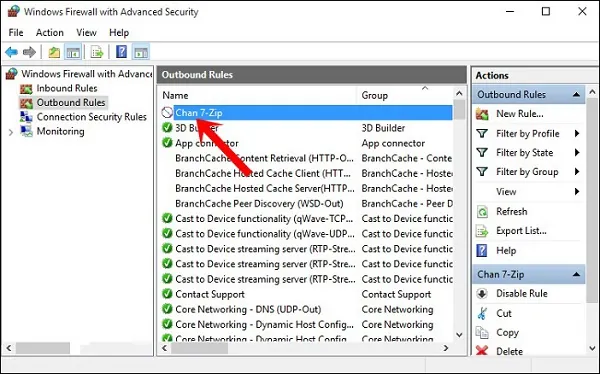
wf.msc. Outbound Rules>New Rule>Program>This program path: Chỉ định đường dẫnsteam.exe,EpicGamesLauncher.exe,Battle.net.exe,GeForceNOW.exe,msedge.exe(cho cloud gaming),chrome.exe…Action: Block the connection.Profile: Domain, Private, Public (Chọn tất cả).
- Mở
- Chặn theo Port/IP Game (Nâng cao):
- Game online thường dùng UDP ports: 27000-27030 (Steam), 7777, 27015, 3478-3480 (WebRTC/Cloud Gaming).
- Tạo rule chặn Outbound UDP trên các dải port này.
- Dùng PowerShell script tự động cập nhật IP ranges của Steam, Epic, Valve, AWS/GCP/Azure Gaming regions để block tại Firewall.
4.4. Group Policy: Tắt Truy Cập Store & Game Bar
Có thể bạn quan tâm: Hướng Dẫn Cách Chơi Slot Game Chi Tiết Nhất Năm 2026: Từ Người Mới Bắt Đầu Đến Cao Thủ
gpedit.msc>Computer Configuration>Administrative Templates>Windows Components>Store>Turn off the Store application= Enabled.Computer Configuration>Administrative Templates>Windows Components>Game DVR/Game Bar>Turn off= Enabled.User Configuration>Administrative Templates>Start Menu and Taskbar>Remove Games link/Remove Game Explorer.
5. Lớp 3: Lọc DNS & Kiểm Soát Truy Cập Mạng (Chặn Web Game, Cloud Gaming, Launcher Update)
Năm 2026, game chạy trên trình duyệt (.io, .gg, now.gg, GeForce Now web, Xbox Cloud web) và Launcher cập nhật game qua CDN. Chặn file .exe là chưa đủ, phải chặn tên miền (Domain).
5.1. Chọn Nhà Cung Cấp DNS Lọc (Filtering DNS) Hiện Đại
Khuyên dùng các dịch vụ hỗ trợ DoH/DoT (DNS over HTTPS/TLS) và Roaming Client/Agent để bắt buộc thiết bị dùng DNS đó, ngăn chặn bypass bằng cách đổi DNS cài đặt thủ công hoặc bật DoH trong trình duyệt.
| Dịch vụ (2026) | Đặc điểm nổi bật | Giá (Dự kiến) |
|---|---|---|
| NextDNS | Cấu hình cực linh hoạt (Blocklist, Allowlist, Rewriter, Analytics, DoH/DoT ID riêng, App detection). Có client cài trên máy (NextDNS CLI/Windows App) ép buộc DNS. | Free (300k query/tháng), Pro ~$1.99/tháng. |
| Control D | Mạnh về “Bypass Prevention”, hỗ trợ Proxy/VPN tích hợp, rule dựa trên ASN, GeoIP, Schedule. Rất tốt cho chặn Cloud Gaming IP. | Free tier hào phóng, Pro ~$2/tháng. |
| Cisco Umbrella / OpenDNS Home | Doanh nghiệp, tin cậy, nhưng giao diện cấu hình phức tạp hơn, ít linh hoạt cho cá nhân. | Free (OpenDNS FamilyShield), Umbrella cao. |
| AdGuard DNS / AdGuard Home | Chặn quảng cáo + tracker + game/gambling. AdGuard Home tự host trên Raspberry Pi/Router/VPS. | Free / Mua license. |
5.2. Cấu Hình “Bất Bại” Cho DNS Trên Windows 2026
- Cài Client Agent: Cài NextDNS Windows App hoặc Control D Windows Client với quyền Admin. Nó tạo adapter ảo/ WFP driver ép tất cả traffic DNS qua DoH profile của bạn. Standard User không thể tắt/gỡ được.
- Tắt DoH Trong Trình Duyệt (Via Policy/Registry):
- Chrome/Edge:
gpedit>Administrative Templates>Google Chrome/Microsoft Edge>Use DNS over HTTPS= Disabled (hoặcDoHMode=offtrong Registry/JSON Policy). - Firefox:
policies.jsontrong thư mục cài đặt:{"policies": {"DNSOverHTTPS": {"Enabled": false, "Locked": true}}}.
- Chrome/Edge:
- Khóa Cài Đặt Mạng (Network Connections):
gpedit>User Configuration>Administrative Templates>Control Panel>Network Connections>Prohibit access to properties of LAN connection/Prohibit access to properties of a VPN connection= Enabled.- Ngăn user đổi DNS thủ công trên card mạng.
5.3. Danh Sách Domain Cần Block (Blocklist Game Năm 2026)
Thêm vào Denylist của NextDNS/Control D:
- Launcher/Store:
steamcontent.com,steampowered.com,store.steampowered.com,cdn.akamai.steamstatic.com,epicgames.com,cdn.epicgames.com,ea.com,eaassets-a.akamaihd.net,battle.net,blizzard.com,xboxlive.com,xbox.com,assets.xboxlive.com,ubisoft.com,uplay.ubisoft.com,gog.com,gog-statics.galaxyclient.com. - Cloud Gaming:
geforcenow.com,nvidia.com(các subdomain GFN),xboxcloudgaming.com,cloudgaming.xbox.com,playstation.com(Remote Play/Now),boosteroid.com,shadow.tech,airgpu.com. - Web Game Portal:
crazygames.com,poki.com,y8.com,friv.com,miniclip.com,kongregate.com,armorgames.com,now.gg,snokido.com,html5.gamedistribution.com,cloud.gamedistribution.com. - Game Online Phổ Biến (VN/Global):
lol.garena.vn,valorant.vn,pubgmobile.com,freefire.com,roblox.com,minecraft.net,riotgames.com,blizzard.com,wargaming.net,gaijin.net. - Danh sách Blocklist cộng đồng: Sử dụng list
OISD,HaGeZi,NextDNS Game Blocklist,Control D Gaming Category.
6. Lớp 4: Phần Mềm Kiểm Soát Cha Mẹ / Giám Sát Hoạt Động (Parental Control & Monitoring)

Có thể bạn quan tâm: Hướng Dẫn Chi Tiết Cách Chơi Pokémon Trading Card Game (TCG) Cho Người Mới Bắt Đầu Năm 2026
Dùng khi cần báo cáo, giới hạn thời gian (Screen Time), chặn theo lịch trình.
6.1. Microsoft Family Safety (Miễn Phí, Tích Hợp Sâu Windows 10/11 2026)
- Yêu cầu: Tài khoản Microsoft (MSA) cho cả cha/mẹ và con. Thiết bị con phải đăng nhập MSA con.
- Tính năng 2026:
- Screen Time Limits: Giới hạn tổng thời gian/ngày, giới hạn theo app/game cụ thể (App & Game Limits).
- Content Filters: Chặn web không phù hợp (SafeSearch bắt buộc Bing/Edge), chặn app/game theo độ tuổi (PEGI/ESRB).
- Spending: Chặn mua hàng trong game/Store.
- Activity Reporting: Xem báo cáo tuần/tháng: app dùng bao lâu, web truy cập, tìm kiếm gì.
- Location Sharing: Xem vị trí thiết bị (nếu là laptop có GPS/Cellular).
- Cách bật:
Settings>Accounts>Family>Manage family settings onlinehoặc app Microsoft Family Safety trên điện thoại.
6.2. Cold Turkey Blocker (Phiên Bản Pro – Trả Phí Một Lần)
- Đặc điểm: “Nuclear option” cho tự kiểm soát hoặc quản lý máy đơn lẻ. Khó bypass nhất thị phần (chống Task Manager, Safe Mode, Uninstall, System Time Change).
- Tính năng 2026:
- Block Application (theo đường dẫn, publisher, window title).
- Block Website (Wildcard, Regex, Import blocklist).
- Schedule: Lịch trình chặn (VD: 7h-21h chặn game, 21h-22h cho chơi).
- Frozen Turkey: Khóa cứng máy tính hoàn toàn trong khoảng thời gian.
- Allowance: Cho phép chơi 1h/ngày, tự động khóa khi hết giờ.
- Break Protection: Không cho gỡ cài đặt, không cho tắt service, không cho đổi giờ hệ thống khi đang block.
6.3. Qustodio / Norton Family / Kaspersky Safe Kids (Giải Pháp Trả Phí Toàn Diện)
- Phù hợp quản lý nhiều thiết bị (Win, Mac, Android, iOS) từ một dashboard web.
- Tính năng: Keylogger (tùy chọn), theo dõi SMS/Call (Mobile), Panic Button, Geo-fencing.
- Nhược điểm: Dễ bị gỡ nếu user có quyền Admin local (phải kết hợp Lớp 1).
7. Lớp 5: Cứng (Hardware/Network Level) – Không Thể Bypass Từ Trong Máy
Giải pháp mạnh nhất cho phụ huynh/quản trị không rành sâu Windows hoặc muốn chặn hoàn toàn tại nguồn.
7.1. Cấu Hình DNS Trên Router (Gateway)
- Đăng nhập giao diện Router (192.168.x.1).
- Tìm mục WAN / Internet Settings / DHCP Server Settings.
- Thay DNS Server = IP của NextDNS/Control D/OpenDNS FamilyShield.
- Quan trọng: Bật Force DNS Redirection (Intercept DNS / Port 53 Hijacking). Router sẽ chặn mọi request DNS ra cổng 53 không phải DNS của Router, ép thiết bị phải dùng DNS đã set.
- Khóa giao diện Router: Đổi mật khẩu Admin router phức tạp, không cho con biết.
7.2. Firewall Router / Layer 7 Filtering (DPI)
- Router hỗ trợ OpenWrt, OPNsense, pfSense, MikroTik, Asuswrt-Merlin, KeeneticOS.
- DPI (Deep Packet Inspection) / L7 Filter: Nhận diện traffic game qua chữ ký gói tin (SNI TLS, Quic, Payload pattern) chứ không chỉ IP/Port.
- Block SNI/QUIC: Chặn
.steamcontent.com,.epicgames.com,.xboxlive.comở tầng TLS Client Hello. - Block Cloud Gaming IP: Dùng Address List / Alias cập nhật tự động IP ranges của AWS/GCP/Azure/Nvidia/Microsoft Gaming.
7.3. VLAN / Guest Network Tách Biệt
- Tạo VLAN/SSID riêng cho thiết bị con/nhân viên.
- Áp dụng Policy chặn game/Internet schedule chỉ cho VLAN đó.
- VLAN Admin/Phụ huynh không bị ảnh hưởng.
8. Xử Lý Các Kịch Bản “Khó Chịu” Năm 2026
Có thể bạn quan tâm: Hướng Dẫn Chi Tiết Cách Chơi Odd Board Game: Từ Quy Tắc Cơ Bản Đến Chiến Thuật Thắng Thử Thách Năm 2026
8.1. Cloud Gaming (GeForce Now, Xbox Cloud, Boosteroid) Chạy Trên Trình Duyệt
- Vấn đề: Không cài exe, chạy trên
msedge.exe/chrome.exe, dùng WebRTC/UDP/QUIC, IP CDN thay đổi liên tục. - Giải pháp kết hợp:
- DNS Block: Block domain
geforcenow.com,nvidia.com(subdomain GFN),xboxcloudgaming.com,playstation.com(remote play). - AppLocker/WDAC: Block
msedge.exe/chrome.exeCHỈ khi chạy với tham số launch cloud gaming (Khó). Hoặc tạo rule AppLocker Deny chomsedge.exenếu publisher là Microsoft nhưng path làC:\Program Files (x86)\Microsoft\Edge\Application\VÀ có argument chứa--app-id=hoặc URL cloud gaming (Cần script PowerShell monitor). - Firewall Outbound Block: Block IP ranges của Nvidia GFN, Microsoft Azure Gaming, Google Cloud Gaming (cập nhật tự động qua script).
- Extension Trình Duyệt (Force Install): Cài extension chặn web (uBlock Origin, LeechBlock) via ExtensionInstallForcelist Policy (Registry/Intune). Extension chạy trong context trình duyệt, chặn URL cloud gaming trước khi load.
- DNS Block: Block domain
8.2. Game Portable / USB / External SSD
- Vấn đề: Chạy file
.exengay trên USB, không cài đặt, không ghi Registry. - Giải pháp:
- AppLocker/WDAC Path Rule:
DenyE:\,F:\,G:\,Removable Storage Devices. Mặc định Deny tất cả removable drive. - Group Policy:
Computer Configuration>Administrative Templates>System>Removable Storage Access>All Removable Storage classes: Deny all access(Quá khắt khe, không copy file được). - Cân bằng: Chỉ
Deny Executetrên Removable Drive qua AppLocker/WDAC. Vẫn cho đọc/ghi tài liệu.
- AppLocker/WDAC Path Rule:
8.3. Bypass Qua Safe Mode / WinRE / Boot USB
- Vấn đề: Khởi động Safe Mode (chỉ load driver cơ bản, tắt AppLocker, WDAC, Firewall, DNS Client, Parental Control Service). Boot USB Linux/WinPE sửa Registry, gỡ phần mềm.
- Giải pháp năm 2026 (Bảo vệ Firmware):
- BitLocker Drive Encryption (BẮT BUỘC): Mã hóa ổ C:. Không có Key/Recovery Key -> Không boot WinPE/Linux đọc được ổ cứng -> Không sửa Registry/Gỡ được phần mềm. Bật TPM 2.0 + PIN/Password BitLocker Pre-boot.
- BIOS/UEFI Password: Set Supervisor Password trong BIOS. Khóa Boot Order (Chỉ boot từ ổ cứng Windows), Disable USB Boot, Disable Secure Boot Toggle (Giữ Secure Boot = Enabled).
- Windows RE (Recovery Environment) Lockdown: BitLocker bảo vệ cả partition Recovery. Yêu cầu BitLocker Key để vào
troubleshoot>Command PrompthoặcUEFI Firmware Settings. - VBS / HVCI (Virtualization-Based Security / Hypervisor-Protected Code Integrity): Bật trong
Core Isolation(Windows Security). WDAC/AppLocker chạy trong VTL1 (Virtual Trust Level 1), kernel (VTL0) không thể tắt được dịch vụ này dễ dàng.
9. Chiến Lược Triển Khai Theo Đối Tượng (Playbook 2026)
A. Cho Phụ Huynh (Con 6-12 tuổi) – “An Toàn, Đơn Giản”
- Tài khoản Microsoft Family (MSA Con + MSA Cha/Mẹ).
- Windows Standard User cho con.
- Bật Microsoft Family Safety (Screen Time, Content Filter, Activity Report).
- Router: Set DNS OpenDNS FamilyShield (208.67.222.123 / 208.67.220.123) hoặc NextDNS Free Config ID + Force DNS Redirection.
- BitLocker ổ C: + BIOS Password (ngăn con mang máy đi sửa/shop cài win lại).
B. Cho Phụ Huynh (Con 13-17 tuổi, Rành Tech) – “Chống Bypass Tối Đa”
- Windows Pro (để dùng AppLocker/WDAC/gpedit).
- Tài khoản Standard User + UAC Max.
- WDAC Policy (Default Deny + Allow Microsoft/Trusted Publishers). Deploy via
SIPolicy.p7b+CiTool. - NextDNS Pro / Control D Pro + Windows Client App (Force DoH, Block DoH Bypass).
- AppLocker Deny Rules: Path
%\Downloads\,%\AppData\Local\Temp\, Removable Drives. Publisher Rule: Deny Unsigned. - Firewall Outbound: Block Game Ports/UDP Ranges + IP Lists (Steam, Epic, Riot, Valve, Cloud Gaming) via PowerShell Script chạy Task Scheduler hàng ngày.
- Edge/Chrome Policy (Registry/Intune): Force Install uBlock Origin + LeechBlock. Disable Developer Tools (
DeveloperToolsAvailability= 2). Disable DoH. Block Extension Install except Force List. - BitLocker + TPM + PIN + BIOS Password (Supervisor) + Disable USB Boot + Secure Boot.
- Router (OpenWrt/OPNsense/Asus Merlin): DPI/L7 Filter Block SNI Game + Force DNS + Schedule Internet Off (VD: 23h-6h).
C. Cho Doanh Nghiệp / Quản Trị Mạng – “Quản Trị Trung Tâm, Tuân Thủ”

- Microsoft Intune / Endpoint Manager (MEM): Quản trị Zero Touch.
- Configuration Profiles:
- AppLocker/WDAC CSP: Deploy policy XML.
- Firewall CSP: Block Outbound Game Ports/IPs.
- Edge/Chrome Policy CSP: Force Extension, Disable DoH, Block URLs (URLBlocklist).
- Defender CSP: Attack Surface Reduction (ASR) Rules (Block executable content from email/web, Block credential stealing).
- Device Restrictions: Block Store, Block Game Bar, Block Camera (tuỳ chọn).
- Microsoft Defender for Endpoint (MDE) / EDR: Phát hiện anomaly (Process injection, LOLBins, Suspicious scripts dùng để bypass).
- Network Firewall (Palo Alto / Fortinet / Check Point / Azure Firewall): App-ID / Application Control Layer 7. Block
gaming,cloud-gaming,steam,epic-games,proxy-vpn,tunneling. - DNS Security: Cisco Umbrella / Infoblox / Azure DNS Private Resolver + DNS Firewall.
D. Tự Kiểm Soát (Self-Control) – “Hỗ Trợ Ý Chí”
- Cold Turkey Blocker Pro (Block App/Web + Schedule + Frozen Turkey).
- LeechBlock NG / uBlock Origin trên trình duyệt (Sync profile).
- Microsoft Edge Workspaces / Profiles: Tách profile “Work” (chặn game web via Extension/Policy) và profile “Personal”.
- Focus Assist / Do Not Disturb: Tự động bật theo lịch.
- NextDNS Personal Config: Block Gaming Category + Schedule (Tắt net game sau 22h).
10. Kiểm Tra, Giám Sát Và Duy Trì (Vòng Lặp PDCA)
Việc chặn game không phải “cài xong là xong”. Năm 2026, game mới, domain mới, IP mới, kỹ thuật bypass mới xuất hiện hàng ngày.
- Review Log Hàng Tuần:
- NextDNS/Control D Analytics: Xem “Blocked Domains”, “Allowed Domains” (tìm domain game lọt lưới -> Add Denylist).
- Windows Event Viewer:
Applications and Services Logs>Microsoft>Windows>AppLocker>EXE and DLL(Xem event ID 8003/8004 – File bị chặn).Firewalllog (Xem connection bị drop). - Microsoft Family Safety Weekly Email Report.
- Cold Turkey Blocker Logs.
- Cập Nhật Blocklist Tự Động:
- Dùng script PowerShell/Python chạy Task Scheduler hàng ngày:
- Pull IP ranges: Steam, Epic, Valve, Riot, Blizzard, Microsoft Gaming, Nvidia GFN, AWS/GCP/Azure Gaming ASNs.
- Cập nhật Windows Firewall Rule (NetSecurity module) hoặc Router Address List.
- Pull domain list từ repo GitHub (VD:
github.com/ChungZH/steam-domains,github.com/microsoft/AzurePublicIPs).
- Dùng script PowerShell/Python chạy Task Scheduler hàng ngày:
- Kiểm Tra Bypass Thử Nghiệm (Pen Test Nội Bộ):
- Thử đổi DNS, bật DoH, dùng VPN, chạy Portable, boot Safe Mode, sửa Registry, gỡ phần mềm chặn.
- Khắc phục lỗ hổng tìm được.
- Cập Nhật Windows & Driver: Luôn cập nhật Patch Tuesday (Bảo mật Kernel, WDAC, Hyper-V, Edge/Chrome).
11. Tóm Tắt Checklist Nhanh (Cheat Sheet 2026)
| ✅ Hành Động | 🎯 Mức Độ | 🛠️ Công Cụ / Nơi Cấu Hình |
|---|---|---|
| 1. Tách tài khoản Admin / Standard | BẮT BUỘC | Settings > Accounts |
| 2. Bật BitLocker + TPM + PIN | BẮT BUỘC | Settings > Privacy & Security > BitLocker |
| 3. Set BIOS/UEFI Password + Disable USB Boot + Secure Boot On | BẮT BUỘC | BIOS/UEFI Menu (F2/Del khi boot) |
| 4. Cấu hình WDAC / AppLocker (Default Deny) | CAO (Pro/Ent) | gpedit / WDAC Wizard / PowerShell |
| 5. Cài NextDNS/Control D Client + Force DoH | CAO | App NextDNS / Control D / Intune |
| 6. Tắt DoH Trình Duyệt (Policy) | CAO | gpedit / Registry / policies.json / Intune |
| 7. Firewall Outbound Block Game Ports/IPs | TRUNG BÌNH | wf.msc / PowerShell Script / Router |
| 8. Router: Force DNS + DPI/L7 Block SNI Game | TRUNG BÌNH/CAO | Router Admin (OpenWrt/OPNsense/Asus/Merlin) |
| 9. Microsoft Family Safety / Cold Turkey Blocker | THEO NHU CẦU | Web/App Family Safety / Cold Turkey App |
| 10. Force Install Extension Chặn Web (uBlock/LeechBlock) | KHUYẾN NGHỊ | gpedit / Intune / Registry ExtensionInstallForcelist |
| 11. Disable Developer Tools Trình Duyệt | KHUYẾN NGHỊ | gpedit / Intune |
| 12. Lịch Review Log & Cập Nhật Blocklist | BẮT BUỘC | Calendar / Task Scheduler |
12. Kết Luận
Vào năm 2026, “cách chặn chơi game trên máy tính” không còn là một thủ thuật đơn lẻ (như sửa file hosts hay block 1 file .exe năm xưa). Nó là một hệ thống bảo mật đa lớp (Defense in Depth) kết hợp chặt chẽ giữa:
- Quản trị danh tính & đặc quyền (Standard User, BitLocker, BIOS Lock).
- Kiểm soát thực thi code (WDAC/AppLocker – “Zero Trust Execution”).
- Kiểm soát luồng mạng (Firewall, DNS Filtering DoH/DoT, Router DPI).
- Chính sách trình duyệt (Force Extension, Disable DoH/DevTools).
- Phần mềm hành vi/Thời gian (Family Safety, Cold Turkey).
- Vận hành liên tục (Log Review, Auto-update Blocklist, Pen Test).
Đầu tư thời gian thiết lập đúng từ đầu theo mô hình “Default Deny” (Mặc định cấm tất cả, chỉ cho phép cần thiết) sẽ giúp bạn yên tâm lâu dài, tránh cuộc đua vũ trang mệt mỏi với các thủ thuật bypass ngày càng tinh vi. Hãy bắt đầu từ Lớp 1 (Tài khoản & BitLocker & BIOS) ngay hôm nay – đó là fondement (nền móng) không thể thiếu của mọi chiến lược chặn game hiệu quả năm 2026.